How to remove text while keeping the background natural
Troubleshoot old-letter halos, flat patches and broken texture. Choose a tight text selection, compare local and cloud repair, and inspect the exported image.

Removing text means replacing the pixels where the letters were drawn. In a flattened image, the hidden background is not available to uncover. A plain area can often be reconstructed from nearby color; paper, shadows and photographs need more care. The aim is a convincing repair, not a promise of recovering the original hidden pixels.
Start with the remove text from image tool. Use Remove text mode when the wording should disappear. If you want different wording in the same place, use Replace text: the background must still be repaired before the replacement can look natural.
1. Decide what kind of background the letters cover
Before running a repair, look beyond the text itself. A single-color UI panel, subtly textured paper, a gradient and a photograph pose different problems. A patch can match the average color yet lose the grain or interrupt a visible line.
Choose the smallest useful task first: one label or one short heading. Keep the original file so you can compare the surrounding design after every attempt. Do not repeatedly recompress the source through screenshots or messaging apps; that makes letter edges and background texture harder to distinguish.
2. Select the complete old lettering, including its edges
Recognize the text, select the line you want to remove, and inspect its original selection. A missed line can be added with Find missed text or a manually drawn region. Keep complete letter edges inside the region while excluding adjacent icons, borders and other text.
If a shadow or outline belongs to the old text, inspect whether the selected area includes it. A box that is too tight can leave a halo. A box that is too large can include design details that should remain. Adjust the original selection when the repair area is wrong; moving the replacement text is a different operation.
For a dense label, work one line at a time. Automatically recognizing every line does not mean every line should be removed.
3. Use local handling where supported, then inspect
Supported simple backgrounds can preview locally in the browser. They do not require a cloud repair merely because the text changed. If the editor reports Background repair needed, complete Repair background before exporting. Check the available allowance first: cloud recognition and cloud background repair send image data for processing.
A completed cloud task means a result was returned. You still need to judge the letter edges and the reconstructed surface. A higher-resolution repair can provide more pixels; it does not guarantee the right texture, lighting or geometry.
Example: a plain screenshot panel
The screenshot below is an actual downloaded replacement edit: “Project overview” became “Project planning,” and “Manage your workspace” became “Organize your team.” It is not a pure text-removal demo; it demonstrates the background clearing needed before new words are drawn.
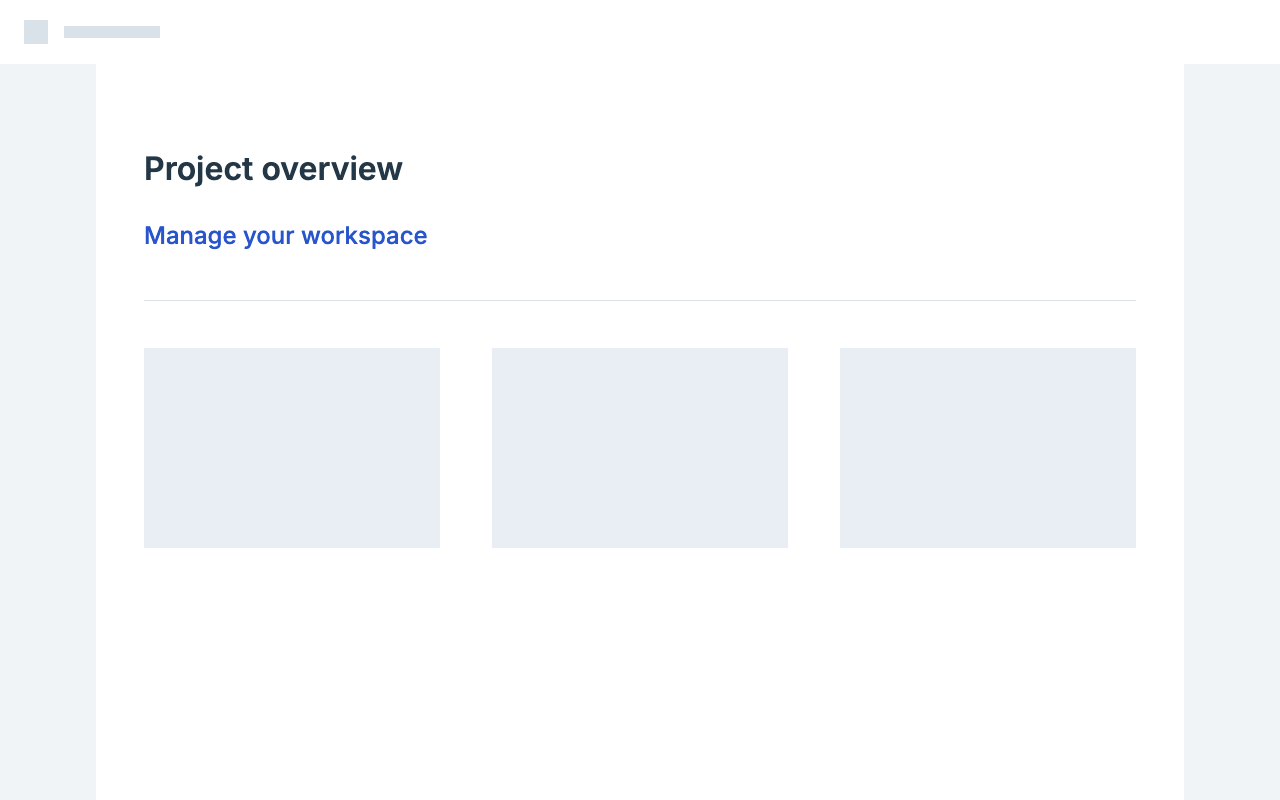
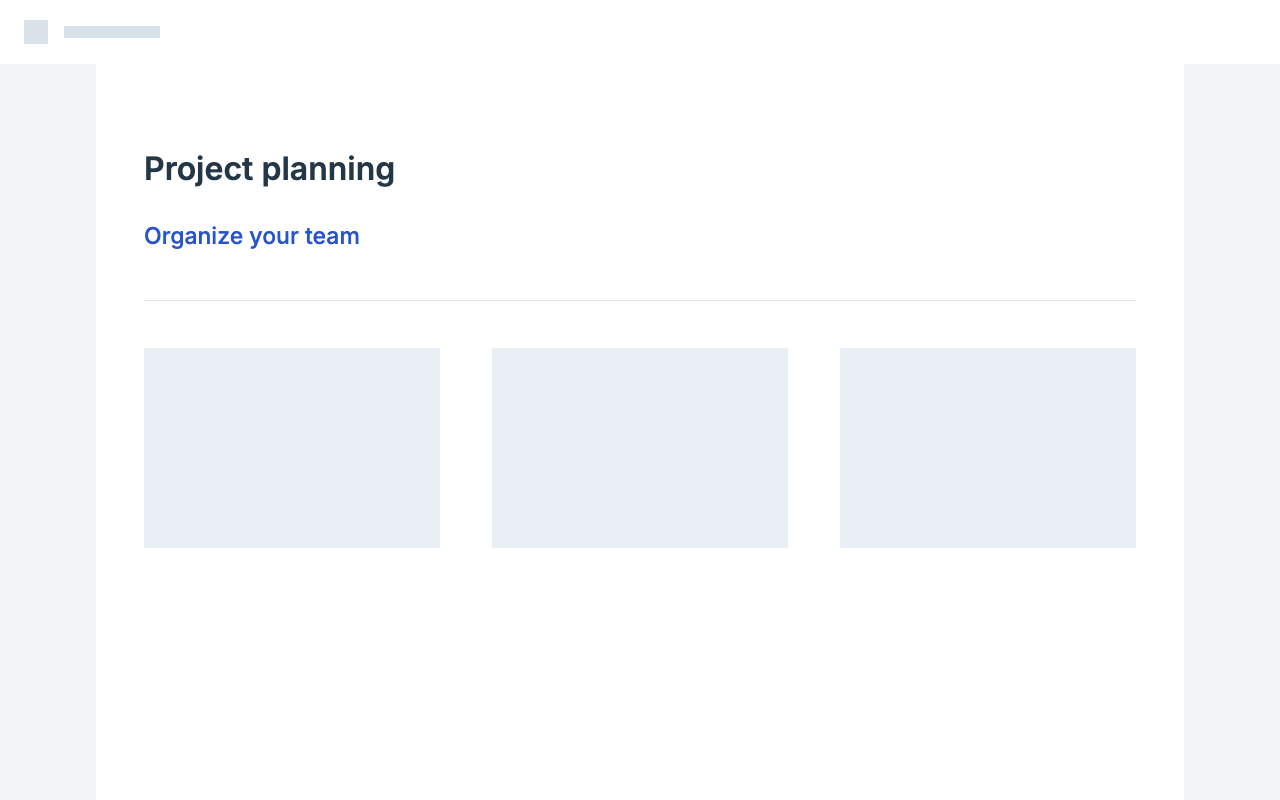
Downloaded result
Compare the panel behind the two lines and the unchanged surrounding interface. Flat surfaces make a visible edge easier to spot: a slightly different white or gray can create a rectangular patch even when no old letters remain. Follow the screenshot editing workflow for the rest of this task.
Example: printed text on paper
The poster example changed SUMMER to WINTER using local background handling. The actual PNG preserves a textured appearance instead of replacing the title area with a visibly plain box.

Downloaded result
This fixed sample was tested successfully; it does not establish that every paper photograph can be repaired locally. Compare the area around the new title as well as the title itself. If the background looks convincing but the letters do not, work through the font-matching checks instead of rerunning the background repair.
Example: removing a title from a landscape
The landscape sample below used a manually selected WANDERLUST region, a standard cloud background repair, and a real PNG download. Recognition needed correction in this example, so the result should not be described as a fully automatic OCR workflow.


Downloaded result
The title was removed and the smaller subtitle remained. In this fixed comparison, pixels outside the expanded repair region were unchanged. The reconstructed mountain texture inside the region is an interpretation of the scene, not recovery of the original scenery hidden by the title. Compare it yourself before using a similar result.
4. Diagnose the visible problem before retrying
Old-letter fragments or a thin outline remain. Check the original region against the complete old lettering. Enlarge it only as far as needed to include the missed edge or shadow, then repair that area again. A new font cannot hide a leftover outline reliably.
A light or dark rectangle appears. Compare the patch border with the surrounding color and lighting. The source may contain a subtle gradient rather than a flat fill. Reconsider the selected area and the available repair method; painting a larger flat rectangle usually makes the seam more obvious.
Paper grain or photographic texture looks smeared. Judge the result at its intended size, then inspect a close view. Repeated patterns, a sudden change in grain and blurred details indicate that the repair has not recreated the surface convincingly. Another result may differ, but repeated generation is not a guarantee of improvement.
A border, illustration or neighboring label changed. Make the original selection narrower if it accidentally includes those details. If the text overlaps an important feature, the image may not contain enough visible information for a reliable automatic reconstruction. Use the original design or a tool that lets you manually rebuild that feature.
The repair looks right but the new text looks pasted on. Compare font shape, weight, baseline, color and source texture. Background quality and typography are separate checks. The poster editor is a useful place to practice both with one short title.
5. Inspect the export and preserve the source
Toggle Original and compare the entire image. Inspect the repaired area at 100% as well as at the size where someone will actually see it. Look for old strokes, seams, interrupted straight lines and changes to neighboring content.
Download PNG to avoid another JPEG compression step, then open the downloaded file and repeat the checks. Saving at the original dimensions does not restore details missing from the source. Keep an editable project file if another revision is likely; a flattened PNG does not retain the editor's text settings.
For a photographed package, follow the product-label guide. For simply hiding information, a solid cover may be more suitable than reconstructing a believable background; the blur and hide tool includes that option. Check the exported pixels before sharing, and share the flattened image rather than an editable project containing the original.