Replace text in an image and fine-tune its style
Change the wording while keeping its place in the design. Compare suggested fonts, adjust spacing and fit longer text before downloading.
Original image
Downloaded result
Drop an image to edit its text
or paste from clipboard (Ctrl/⌘ + V)
JPG, PNG or WebP · original-resolution export · up to 32 megapixels
Local recognition keeps your image in this browser. Cloud options are available below.
Try a sample:
Recognition settings & projects
Local recognition is selected. You can change the method below.
Best for clear, straight text, up to 20 megapixels. Recognition files download on first use; your image stays in this browser.
Projects stay in this browser. Default local recognition keeps your image here; choosing cloud recognition or AI background repair sends images for processing.
Original image
Downloaded result
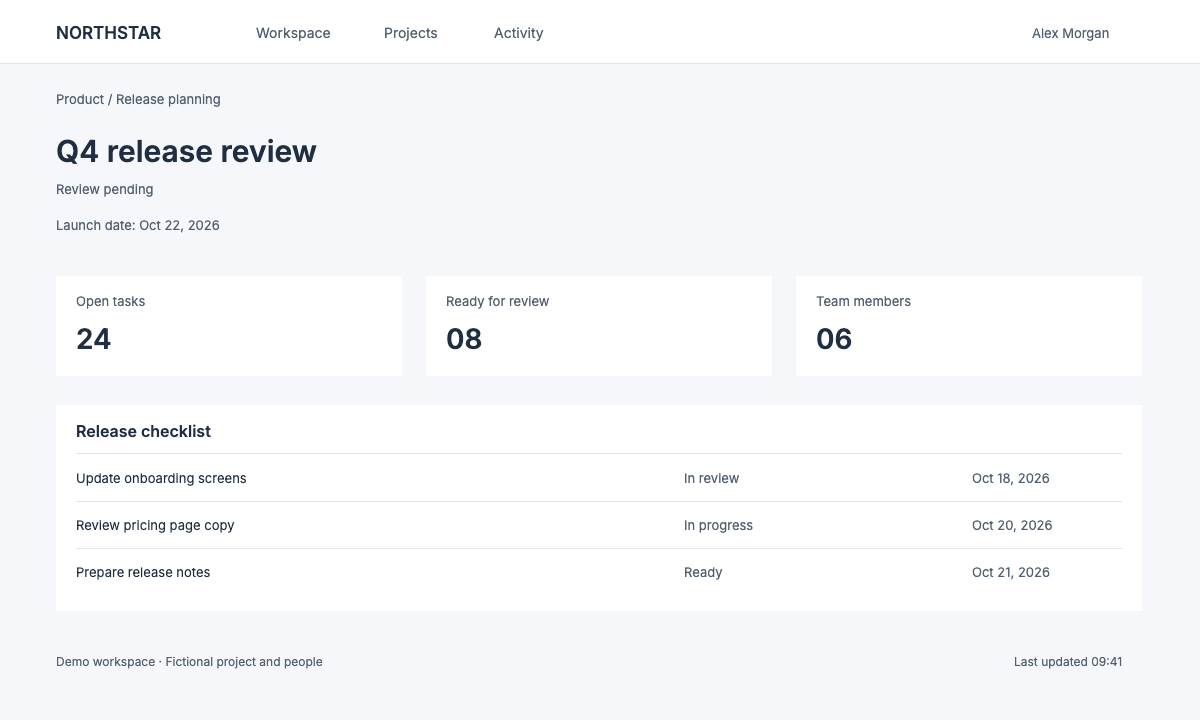
Replace a short label with longer wording
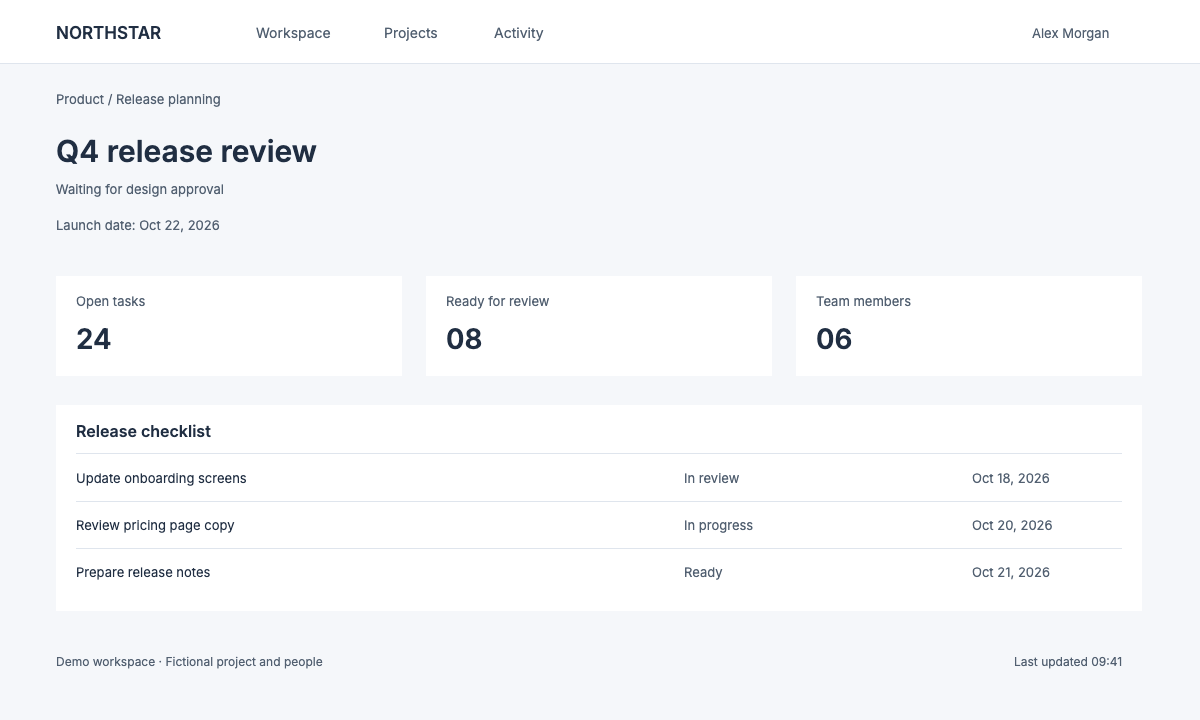
In this original demo interface, Review pending becomes Waiting for design approval. The final export uses the known Inter font at 13 px and deliberately extends into the empty space on the right. Compare it with the original and with the automatic-fit version below.
Inspect the edited area at 100% · scroll to compare
Original image
Downloaded result
Compare letter shapes first
Look at the serifs, bowls and stroke weight beside an unchanged line. Similar names or a high match score do not guarantee the right shape.
Fit the sentence, then check its size
Try a short word and a longer phrase. Use Shrink to fit when needed, but shorten the copy if fitting makes it hard to read.
Check the baseline and the old edges
Compare the bottoms of letters, the gap to the next line and the area around the old word. Adjust position before exporting the full-size PNG.
This flat UI example isolates wording length, font size and baseline. It does not establish a match rate for unknown fonts, handwriting or textured lettering. Curved or strongly angled text can need a different design workflow.
Compare automatic fitting with a manual size
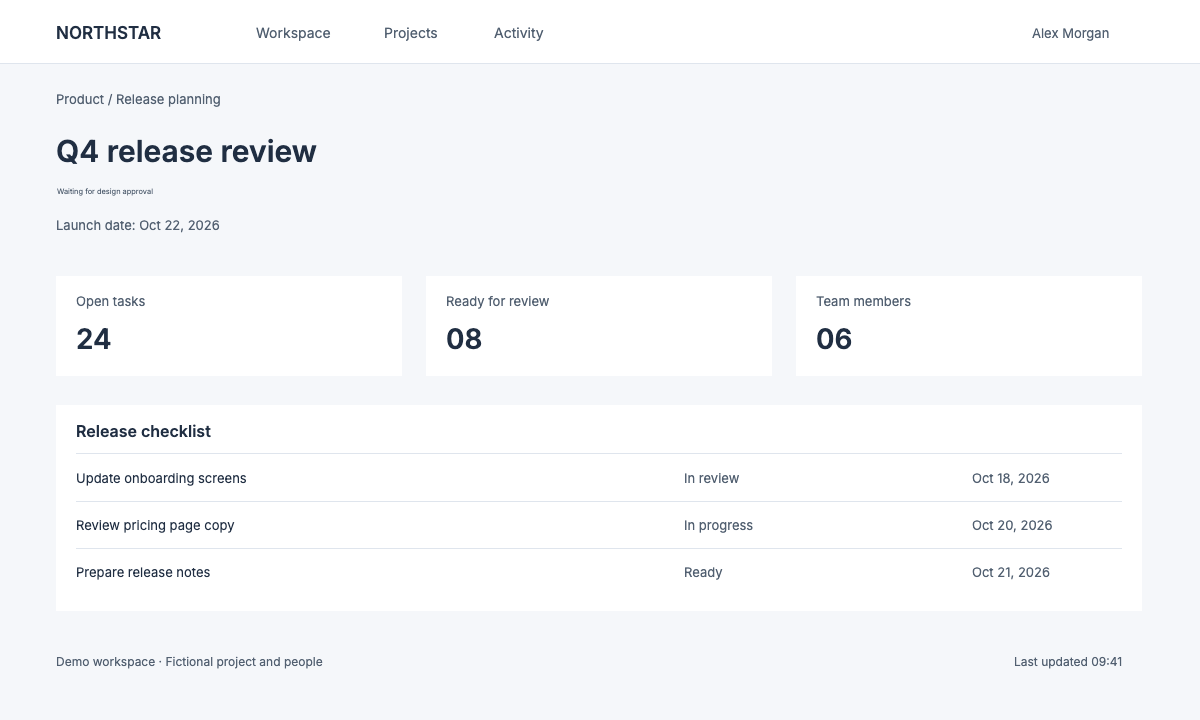
Both exports contain the same longer phrase. Automatic fitting keeps it within the old width by reducing its size. The manual version preserves 13 px and uses the open area beside the original label. Inspect both at 100% before deciding which layout fits your image.
Inspect the edited area at 100% · scroll to compare
Automatic fit
Manual size · 13 px
How to do it
- 1
Upload or paste your image. Detected text lines are outlined; draw a box around anything missed.
- 2
Select a text layer, enter the new wording, and adjust its font, size and color.
- 3
Preview your text and style changes locally. If prompted, choose Repair background, then export PNG or JPG at the original image dimensions within supported limits.
Not for IDs, bank cards, receipts, certificates or payment screenshots. Acceptable use
Work through a real example
Frequently asked
Edit the text. Make it yours.
Start editing locally for free. Includes 3 standard cloud background repairs per day, with no account needed.