Change text on a product label without losing its visual hierarchy
Edit a short package headline or sample label: check recognition, compare font candidates, fit multilingual wording, repair the background and inspect the exported image.
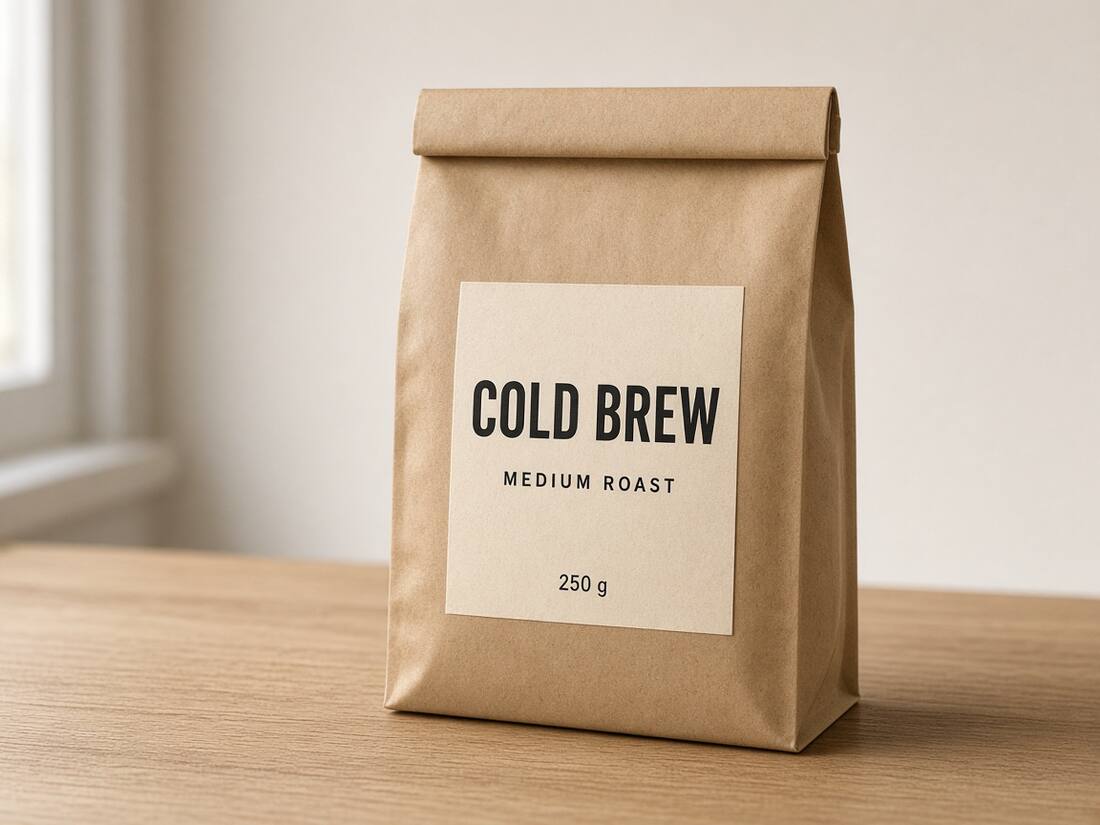
A product-label mockup is useful when exploring a new headline, flavor name or short description on packaging you own. A photographed label needs more care than a plain screenshot: paper texture, lighting, letter shadows and perspective all affect the result.
Use the coffee-label sample in the image text editor to explore the controls before working on your own file. If you have the original layered artwork, changing its actual text layer is the more direct approach. This workflow is for a finished image whose wording needs another revision.
Work on one line first
Choose a clear, nearly front-facing image. Select a short headline such as “COLD BREW,” then inspect the detected region. Include all of the letters and avoid nearby graphics. Correct the recognized original if a letter or space is wrong; an incorrect source string makes font comparison less useful.
Local English recognition now finds “COLD BREW,” “MEDIUM ROAST” and “250g” in the coffee sample. These three lines are one tested example, not a completeness guarantee for other packaging. A missed line can be added with Find missed text, which preserves existing edits, or with a hand-drawn region and its original wording. You can copy recognized original text or export selected lines as TXT for proofreading. Keep replacements separate from that source transcript so a reviewer can tell which wording belonged to the image.
Match the role of the type
A condensed headline, small supporting label and body description should not all receive the same settings. Start with a suitable font candidate, then compare the shapes, weight and proportions against the original. The font library provides visual alternatives; it does not establish the exact font used in a photograph. Load a font file you have permission to use if you know the original face. If the replacement still looks different, follow the font-matching troubleshooting guide in the order of family, weight, spacing and baseline.
Check color against the label itself. Lighting can make nominally white lettering appear warm or gray. Adjust color and weight deliberately, and use stroke width only when an outline is actually part of the design. A heavier substitute may occupy the right rectangle yet still dominate the package too much.
Compare the line both close up and within the whole product image. A headline should retain its prominence without crowding the brand mark or the smaller description below it.
Fit longer or multilingual wording
Start with similar-length wording, then test the longer version you actually need. Automatic fitting adjusts replacement text to the original text area. Long content may become smaller; adding a deliberate line break changes the vertical layout as well as the width.
When replacing Latin text with Chinese, choose wording yourself and inspect the native Chinese font. The editor adapts the font and fit across scripts; it does not provide an automatic translation. Avoid judging Chinese letter widths by a condensed Latin headline. Check the balance of the finished label, not only whether every character fits.
If you set the font size manually, inspect any overflow warning. Move the output text by dragging it or adjusting its position values. With the canvas text handle focused, arrow keys move by 1 working-image pixel and Shift plus an arrow moves by 10. Keep the original text selection over the old lettering; moving that selection changes the repair area.
Inspect the repaired background
Simple supported backgrounds can preview locally. After a wording or style change, the editor may ask you to repair a complex background. Review the shown quota and run the repair. Inspect the old letter edges, paper grain and nearby illustration at the size you plan to publish.
Look for repeated texture, a light halo, mismatched shading or remnants of the old text. A completed task only means an image was returned; it does not mean every patch looks convincing. If the region is wrong, adjust it and reassess. Curved lettering, strong perspective, embossing and detailed shadows can need a design tool or an edit to the original artwork.
Keep a delivery image and an editable copy
Toggle Original to compare the package before and after the change. Read the complete wording again, then export PNG for a version without another lossy compression step. JPG may be useful for a smaller delivery file, but inspect fine letters after its whole-image recompression.
Original-size export retains the canvas dimensions within supported limits: up to 32 megapixels and 16,384px per side, subject to browser memory. It cannot add missing source detail or guarantee a photographic match in the repaired area.
Save a project file alongside the image if you expect another wording revision. Browser autosave is local to that browser; it is not a cloud project library. The project can reopen your text and style settings, while the downloaded PNG or JPG is flattened.
For straight text on a software interface, use the screenshot workflow. To examine similar typefaces before editing, open the font finder.
For a flatter event design, try editing a poster or flyer. For halos, paper seams or missing texture, follow the background-repair troubleshooting guide.