How to match the font when editing text in an image
Fix replacement text that looks different: compare letter shapes, adjust weight and spacing, align the baseline, and fit longer wording without shrinking it too far.
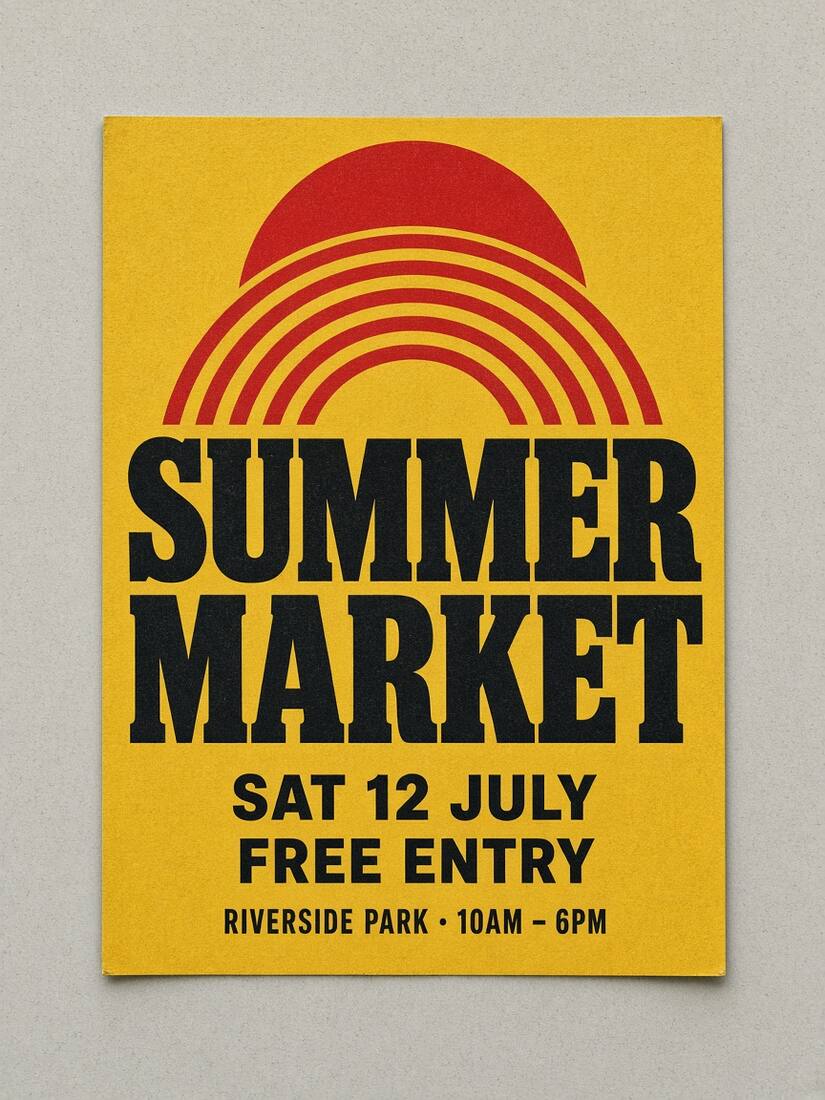
Changing the words is only half of editing text in an image. A replacement can be correctly spelled and still look wrong because its letters are wider, heavier, lower on the line, or too clean for the surrounding print. Work through those differences in order instead of changing every setting at once.
Open the replace text in image tool if you want to follow along. Start with the screenshot or poster sample. If your only task is comparing possible font names, use the font finder; a visual suggestion is a candidate, not proof of the exact original font.
What “the same font” can mean in a flattened image
A JPG or PNG normally contains colored pixels rather than an editable text layer with a font name. The editor compares the visible lettering with available fonts. Compression, small text, perspective and paper texture can all make different fonts look similar.
If you have the original design file and font, editing that text layer is the most reliable route. If you only have an image, aim to match the visible characteristics and inspect the result. A similarity score is not the probability that a suggested font is the original. Even the correct font can look different when its weight, spacing or rendering differs.
Use the source you have to choose your next step:
| What you have | Start here | What still needs checking | | ---------------------------------- | ------------------------------------------------------ | ---------------------------------------------------------------- | | The original font file | Load that font and compare the original wording first | Weight, spacing, baseline and character coverage | | Only a clear screenshot or graphic | Compare suggested families against distinctive letters | A visually close family may still have different widths | | Hand-drawn or textured lettering | Compare a short replacement at its final size | A font alone may not recreate its shapes, texture or perspective |
1. Correct the source text before comparing candidates
Use a clear source image and keep an untouched copy. Local recognition is selected by default, with Auto available for English and Chinese text. Select a detected line and check Recognized original text, including spaces and punctuation. Correct an OCR mistake and click outside the field to apply it. Keep the replacement wording in its separate field.
This matters because comparing the wrong letters is misleading: an “O” and a zero can have different widths in the same font. If a heading was missed, use Find missed text or draw a region around that line and enter the original wording. The original selection should cover the complete letters while leaving neighboring icons and lines outside it.
2. Match letter shapes before size and spacing
Open the Font library. Compare its original-image crop with the original wording rendered in a candidate font. Look at distinctive features: the tail of an R, the middle of an M, a rounded versus square dot, the shape of a lowercase a, and the presence of serifs.
Choose a family whose shapes fit before adjusting its width. Increasing spacing cannot turn a geometric sans serif into a condensed face, and an outline cannot reproduce a slab serif. Compare a few plausible candidates, then use Apply selected font. Recheck the full line after applying it; font previews alone do not prove the final layout is right.
If you have the original font, use Load a font to select a TTF, OTF, WOFF or WOFF2 file you have permission to use. Apply it to the selected line, keeping the original wording while you compare. Check which font file you loaded: a regular face and a semibold face can share a family name but produce different strokes. Then set the weight and type the replacement.
The font is saved locally with the project. Confirm that it contains the characters you need; a Latin font without the required Chinese or accented characters can introduce a visibly different fallback face. When reopening a project on another device, check that the uploaded font has loaded before exporting.
3. Tune weight, then character spacing
Open the advanced typography controls. Set Weight close to the original, using the weights available for that family. Compare the stems of letters and the open spaces inside them. Do not add an outline just to make normal text bolder: an outline also narrows counters and can change the letter shape. Use Outline width when the source actually has an outline.
Next adjust Spacing (px) in small steps. If the first letter aligns but the last letter ends too far away, and individual letters otherwise look right, spacing may be the problem. If every letter is visibly too wide, reconsider the font family before squeezing the line into place.
Judge small UI labels at their intended display size as well as close up. A weight that looks attractive when enlarged can make a small label appear darker than every other label in the screenshot.
4. Fit the wording without making it unreadable
First test wording of a similar length. For example, compare “Project overview” with “Project settings” before attempting a much longer sentence. This isolates typography from the separate problem of fitting more words into the same area.
Automatic fitting may reduce the replacement's size when the new wording is longer. That can make the line fit mathematically while looking too small beside unchanged text. If that happens, shorten the wording, choose an appropriate narrower font, or introduce an intentional line break where the design has room for it.
A manual size gives you more control, but you must inspect overflow and neighboring content. Enlarging the original selection merely to fit a longer sentence also changes the area used for background repair. Keep that selection over the old letters; adjust the replacement layout deliberately.
For a practical length check, try Project settings, then Project access settings in the same region. Compare their displayed sizes with an unchanged UI label. If the longer version becomes noticeably smaller, use the shorter label or make a deliberate layout change. Do not increase character spacing to solve a line that is already too wide.
5. Align the baseline and check the color
Compare the bottom of ordinary capital letters or letters without descenders with nearby unchanged text. Letters such as g, p and y extend below the baseline, so their lowest pixels are not a useful alignment target.
Move the output text using its position controls or drag its canvas handle. With that handle focused, arrow keys move it by one working-image pixel; Shift plus an arrow moves it by ten. These are working-image coordinates and are mapped to the output when exporting a larger original image.
Match color to the photographed or captured lettering, not just to the nominal brand color. Warm lighting can turn white text cream; compression can soften black edges. Check color only after the font and position are close, so one change does not hide a different problem.
A tested example: SUMMER to WINTER
In the poster sample, local English recognition found both large headings and the smaller supporting lines. Changing SUMMER to WINTER produced the actual PNG shown below using a Bevan candidate and local background handling. The unchanged MARKET line provides a useful reference for weight, spacing and surface texture.
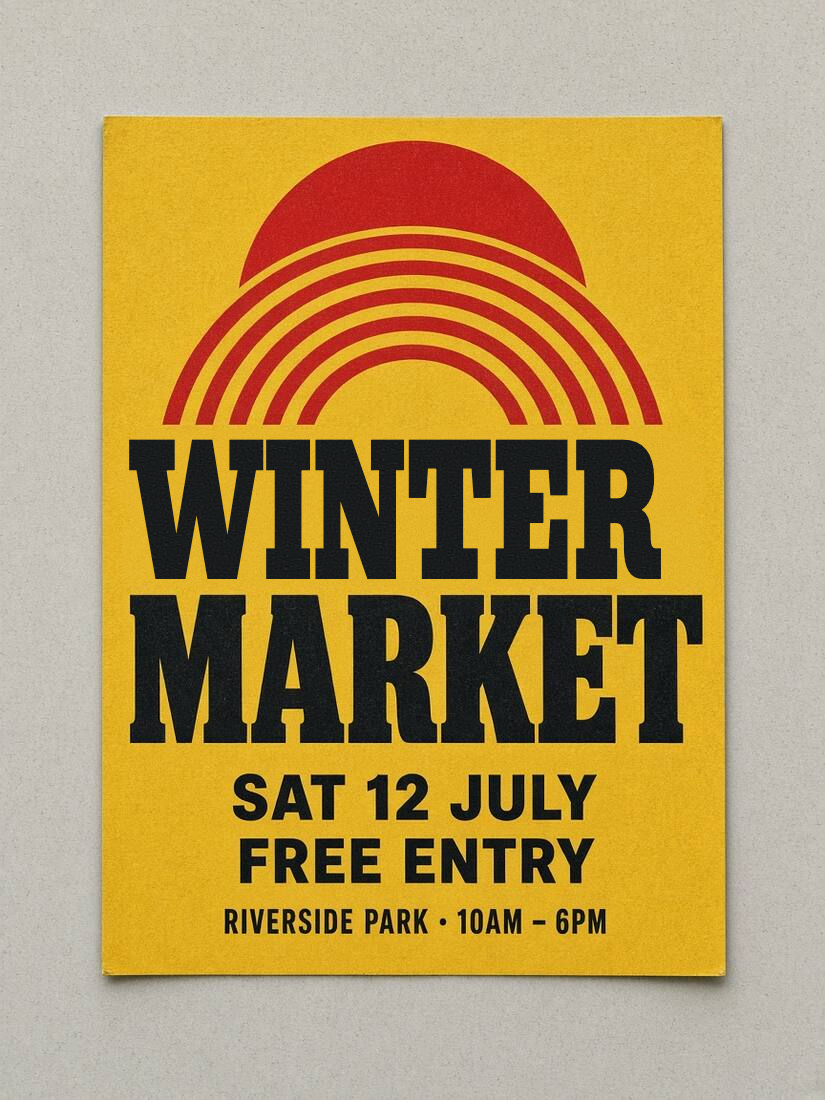
Downloaded result
This is an approximate visual match. The original face was not positively identified, and one successful poster is not an accuracy rate for other designs. The sample also shows why a plain, perfectly smooth replacement can look different from textured print. Some eligible source textures can be carried into the replacement automatically, but this is not a general recreation of painted, metallic or three-dimensional lettering.
Try your own date or headline in the poster text editor. Start with one line and inspect the downloaded result before changing every part of the design.
When the font is close but the edit still looks wrong
- You can see the old letters: this is a selection or background-repair problem. Check the original region and complete the indicated repair before judging the new font.
- The replacement gets tiny: the new wording is too long for the available space. Shorten it or change the layout instead of repeatedly shrinking it.
- It sits too low: adjust the output position against a nearby baseline. Moving the original selection is not the same operation.
- The lettering is sharp but the source is worn: compare at the final display size. Do not assume a new font can reproduce every print or photographic effect.
- The text follows a curved label or strong perspective: a straight text replacement may remain unconvincing. Use the original artwork or a design tool that can reproduce the required geometry.
Check the downloaded image, then save an editable copy
Toggle Original to compare the whole image. Check the exact spelling, first and last letters, baseline, old-letter edges and space around nearby artwork. Download PNG, open the file at its intended size, and inspect it again. The workbench's fit-to-view scale can hide small mistakes.
Save a project file as well if you expect another revision. A finished PNG is flattened; the project retains editable text and styling. Browser autosave is local to the current browser and can be cleared.
For small labels in a captured interface, use the screenshot text editor and follow the screenshot workflow. For a badge with transparent edges, use the PNG text editor and check the downloaded alpha channel. A photographed package has different background challenges; see the product-label workflow.
Local recognition and supported local edits work in the browser. Choosing cloud recognition or AI background repair sends image data for processing; check the available allowance before starting a cloud operation.