Edit screenshot text while keeping the UI consistent
A practical workflow for correcting screenshot labels: review OCR, compare fonts, adjust placement, and keep both an exported image and an editable project.
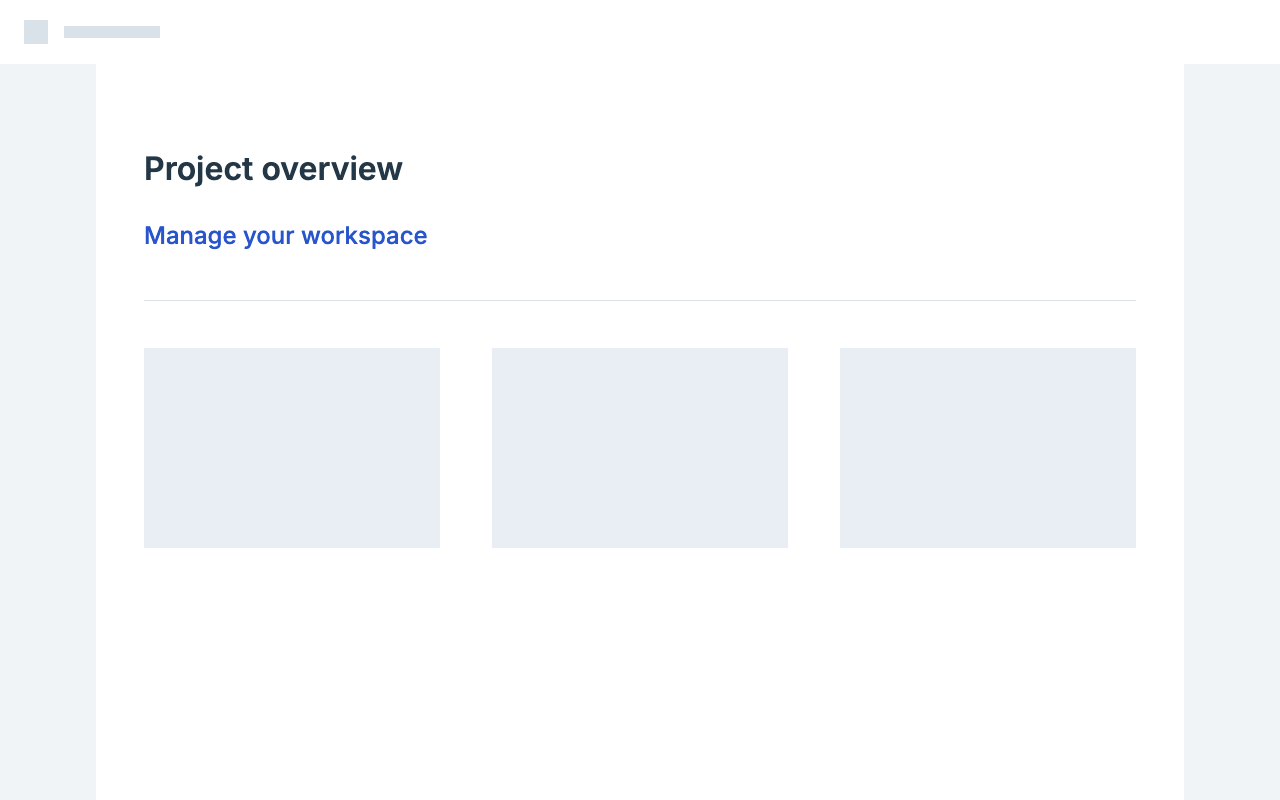
A screenshot for a product demo often needs one small change: a clearer heading, a sample project name, or a translated label. The surrounding interface should still look consistent. Start with a copy you are allowed to edit and use fictional data for demos.
Open the screenshot text editor and paste a PNG with Ctrl/⌘+V, upload a file, or try the UI sample. A direct screenshot is a better starting point than a copy compressed through a messaging app. Keep the source application open if you can: its actual font and text settings are useful references.
To follow the exact labels in this walkthrough, download the original walkthrough PNG and upload it to the editor. The tool page also offers newer light and dark interface examples.
Local recognition is selected by default, with Auto available for English and Chinese text. The original UI sample used for this walkthrough contains “Project overview” and “Manage your workspace.” Check the recognized wording before editing. Cloud recognition is optional; selecting it sends the image for processing.
Check the recognized original first
Select a detected line and read its original text in the properties panel. Recognition can confuse a zero with the letter O, omit punctuation, or combine adjacent labels. Correct the recognized original text to match what is actually in the screenshot; click outside the field to apply the correction. This changes the editor's reading of the image, not your replacement wording.
If a label was missed, use Find missed text to add detections while keeping current edits. You can also draw a region around that line and enter its original text. Keep the full letters inside the region and neighboring icons outside it. Use the separate source-selection adjustment only to correct these boundaries.
The Recognized original text section can copy all original text or just selected lines, and export the same content as TXT. It includes your recognition corrections. It does not export the replacement wording or text layers you added. This is useful for proofreading a few labels before you start editing them.
Replace a label and inspect the font
For a simple exercise, change “Project overview” to “Project settings.” Similar lengths help you judge the font without a large layout change. Enter the replacement, then compare the suggested font, size, color and weight against nearby unchanged labels.
Font suggestions are visual candidates from the available library, not proof that the source used that font. If you know the original font, select it or load a font file you are permitted to use. Check distinctive letters, punctuation, character width and the distance between words. A close font can still look too heavy on small UI text. Use the font-matching troubleshooting guide when the shapes, weight, spacing or baseline still look different.
Automatic fitting keeps replacement text within the original text area and may reduce its size. A translation into Chinese can require a different font and width from the Latin source. The editor adapts the text; it does not translate it for you. If automatic fitting makes a label too small, try shorter wording or an intentional line break, or set a size manually and inspect the result for overflow.
Move the new text without moving the repair region
In selection mode, drag the output text to adjust its position. With its canvas handle focused, use an arrow key for a 1px adjustment, or Shift plus an arrow for 10px. These adjustments use the editor's working-image pixels; a downscaled preview maps them back to the export dimensions.
Moving output text and adjusting the original selection are different operations. The source selection should stay over the old letters so the background can be repaired there. Use the position fields for a numerical adjustment, and Undo to reverse a move.
Plain backgrounds can preview locally. If the editor marks a background for repair, run that step before export and inspect the old lettering, the patch edges and any nearby divider or icon. Check the displayed quota before starting an online repair.
Editing on a phone
Select a text layer or the text-properties tab to bring its controls into view. Make one small edit, then download and reopen the PNG before doing a long session. A desktop browser at a phone-sized viewport has been tested through editing and export; this does not establish how every iPhone Safari version, soft keyboard or file-saving flow behaves.
If the keyboard covers the controls, dismiss it before selecting the next layer. Keep an exported project file when moving between devices: browser autosave does not transfer the project automatically. A device-specific iPhone walkthrough will need a verified Safari workflow; do not assume desktop shortcut or download instructions are identical on a phone.
Compare, export and keep the project
Toggle Original to compare the full screenshot. Review the new line's baseline, left edge and spacing relative to nearby UI elements. Then download PNG to avoid an additional JPEG compression step. Open the downloaded file at its intended display size; the workbench's fit-to-view percentage is not a substitute for checking the actual file.
The editor retains original export dimensions within the supported 32-megapixel and 16,384px-per-side limits, subject to browser memory. Analysis uses a separate copy up to 2,048px on its longest side. A larger output canvas does not recover details missing from the source or improve a repair automatically.
Download an editable project file as well. Automatic project saving stays in the current browser, and browser storage can be cleared. A PNG contains the finished pixels; the project preserves text, fonts and edits for another revision. It is not automatically synchronized to another account or device.
For a screenshot that only needs names or email addresses hidden, use local blur, pixelation or solid covers. Default local recognition and manual obscuring stay in your browser. Choosing cloud recognition or running AI background repair sends image data for processing. For a photographed package rather than a UI screenshot, follow the product-label workflow.
For an event headline, date or venue rather than a UI label, use the poster text editor. For old-letter outlines or a visible repair patch, see how to keep the background when removing text.