Edit image text with the same font: 5 tools compared
Canva Grab Text, PhoText, ReWords, Photoshop and TwinFont compared: how each changes image text, matches the font and what it costs.
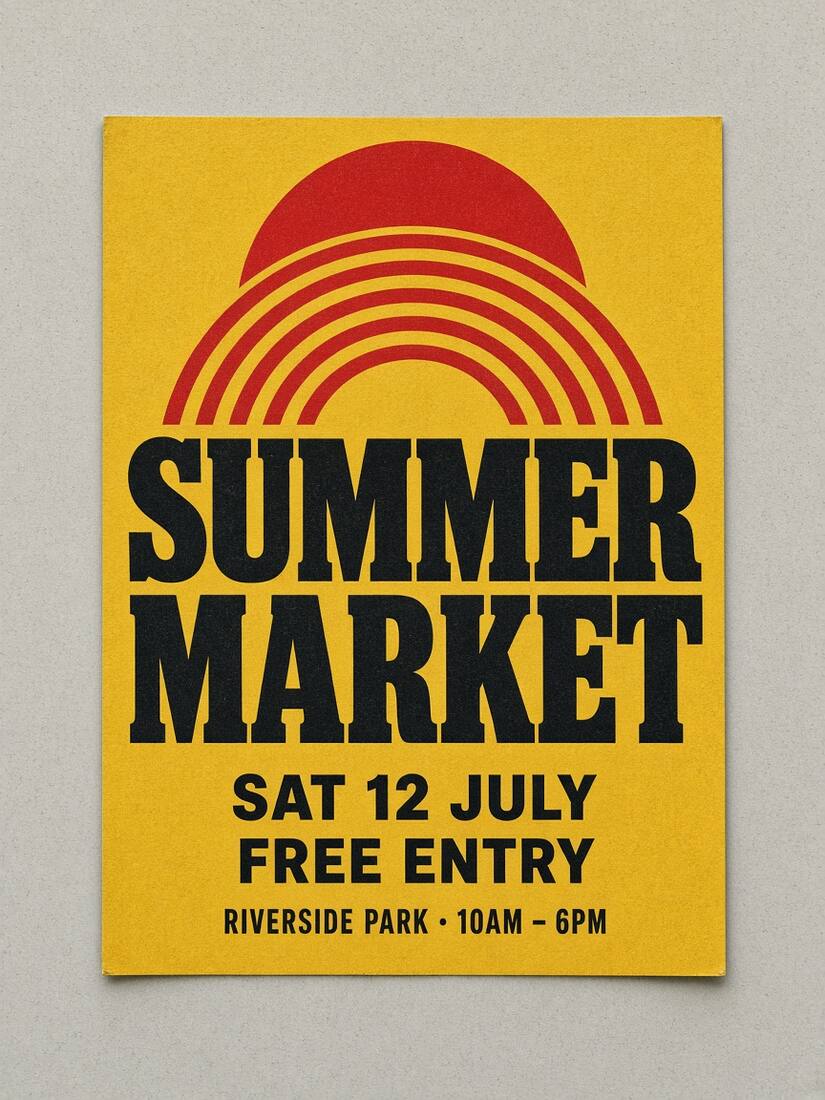
To edit text in an image and keep the same font, use a tool that does three things: it recognizes the existing words, suggests a font that matches their shapes, and repairs the background behind the old letters. Canva's Grab Text, PhoText, ReWords, Adobe Photoshop and TwinFont all cover this task, but they work differently. This guide compares them so you can pick the one that fits your image and budget.
Information about other tools comes from their own websites as of November 5, 2026, and may change. TwinFont is our product; we describe its limits as plainly as the others'.
Quick comparison
| Tool | How it changes the text | Font handling | Cost | Best for |
|---|---|---|---|---|
| Canva Grab Text | Turns flat text in a photo into an editable text layer inside a design | You choose a font from Canva's library | Grab Text is part of Canva's paid plans | People already designing in Canva |
| PhoText | Click a word in the image and type the replacement | AI picks the style automatically | Advertised as free online | Quick fixes in screenshots and photos |
| ReWords.AI | Highlight words; AI regenerates that area with the new text | AI imitates the original style in the regenerated pixels | Advertised with a free option | Short edits where an AI redraw is acceptable |
| Adobe Photoshop | Remove the text (for example with Content-Aware Fill), then add a new type layer | Match Font suggests similar fonts from Adobe Fonts and your system | Paid Creative Cloud subscription | Full manual control and print work |
| TwinFont | Select a detected line, type new words, repair the background if needed | Ranks 40+ free Google Fonts and your device fonts by letter shape | Local editing free; repair credits from $4.9 | Same-font edits you want to check and fine-tune |
How the approaches differ
There are two basic ways to change text in a flat image.
Re-typesetting. The old letters are removed, the background behind them is rebuilt, and the new words are set as real text in a chosen font. Canva Grab Text, Photoshop and TwinFont work this way. You can see exactly which font is used, adjust size and spacing, and the new letters stay sharp. The result depends on how close the chosen font is to the original.
AI regeneration. The tool redraws the selected area with the new words, imitating the original lettering. ReWords describes this approach: it regenerates the pixel area instead of laying new text on top. It can handle textures and unusual lettering in one step, but you cannot choose or inspect the font, and the redraw can change details you did not intend to change.
Neither approach can recover a font name that is not in its library. If the original is a commercial or custom typeface, every tool gives you a lookalike.
Canva Grab Text
Inside Canva you open the photo, choose Edit, go to Tools and select Grab Text. Canva separates the text from the image and turns it into an editable text box, so you can re-type the words and pick any font from Canva's library. It fits best when the image is part of a larger Canva design. You need a paid Canva plan to use Grab Text, and you choose the replacement font yourself.
PhoText
PhoText is a free online editor focused on image text. You upload a JPG, PNG, WEBP or PDF, click the text you want to change and type the new words; the site says its AI matches the style and cleans up the background. It also offers a font finder and an image translator, and the site is available in several languages. It suits fast fixes where you do not need to control the exact font.
ReWords.AI
ReWords lets you upload an image, highlight the words and type the replacement. Its AI regenerates that area so the new text follows the original font, color, shadow and lighting. Because the result is redrawn rather than typeset, check spelling and small details carefully after each edit.
Adobe Photoshop
Photoshop gives you full manual control. A common workflow is to select the old text, remove it with Content-Aware Fill, add a new type layer and use Type › Match Font to find similar fonts from Adobe Fonts and your computer. It takes more time and skill, and it requires a Creative Cloud subscription, but nothing is decided for you.
TwinFont
TwinFont is an online image text editor built around the same-font workflow. Local recognition finds the text lines in your browser. For a selected line, TwinFont compares the letter shapes with more than 40 free Google Fonts and the fonts on your device, shows a similarity score for each candidate, and keeps the original size, color and position. AI background repair rebuilds the area behind the old letters when needed. Local edits export PNG or JPG at the original resolution with no watermark; free-tier cloud repairs preview and export at 720px with a preview badge, and any credit pack unlocks original-size unwatermarked exports.
Limits: TwinFont suggests fonts; it cannot guarantee the exact original font, and curved, 3D or hand-drawn lettering may need a custom font and manual adjustment. Background repair runs in the cloud; guests get 1 lifetime standard repair trial, sign-up grants 3 welcome credits, and never-expiring credit packs start at $4.9.
How to choose
- You already work in Canva: use Grab Text and pick the font yourself.
- You need a one-click fix and do not mind how the font is chosen: try PhoText or ReWords and inspect the result at full size.
- You need the replacement to be real, sharp text in a font you can see and adjust: use TwinFont, or Photoshop if you need full manual control.
- You only need the font's name: start with a font finder, such as TwinFont's font finder for free lookalikes, before editing anything.
Edit text with a matching font in TwinFont
- Open the change text in image tool and upload your image, or try a sample.
- Select the line you want to change and type the new words.
- Compare the suggested fonts with the original letters and pick the closest one. Adjust weight, spacing and position if needed.
- If old letters still show around the new text, run background repair and review the patch.
- Export PNG or JPG at the original size.
For a step-by-step troubleshooting guide, read how to match the font when editing text in an image.