How to fix misspelled or garbled text in AI-generated images
Fix typos, extra letters and broken words in Midjourney, Flux, Ideogram or ChatGPT images without regenerating the whole artwork.
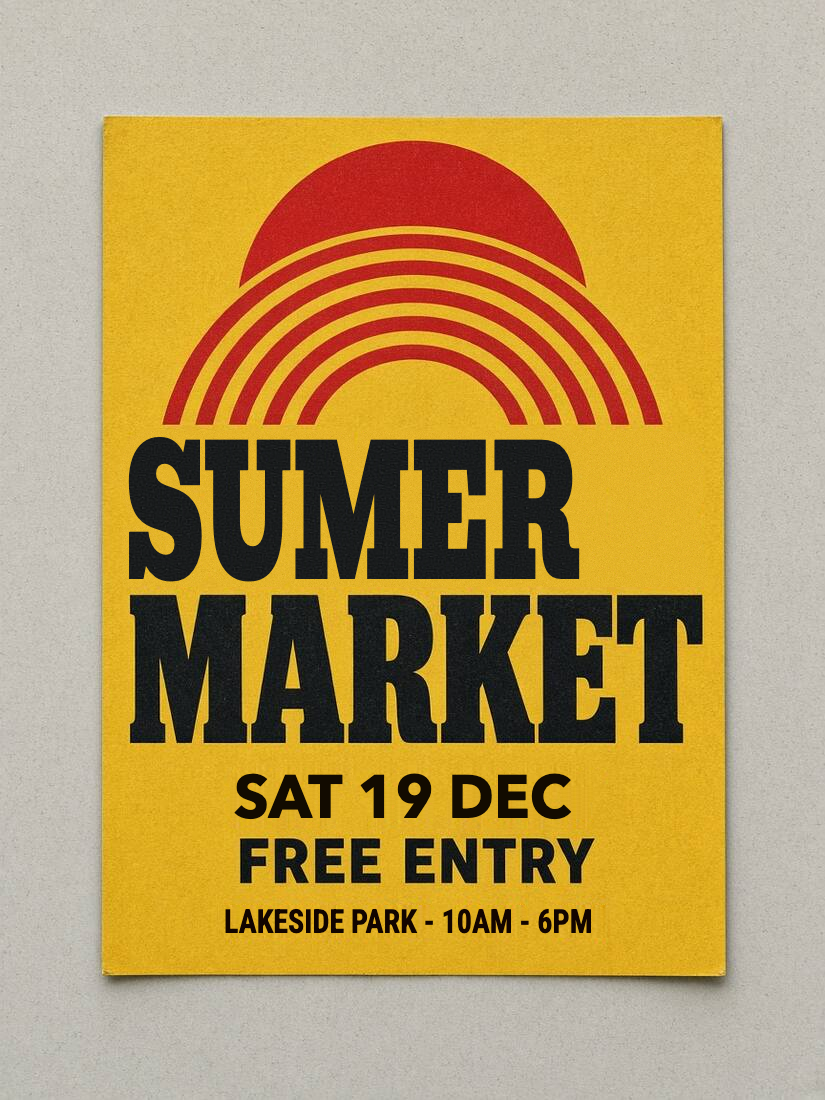
Even the best image generators—Midjourney, Flux, Ideogram and ChatGPT—regularly produce a poster, book cover or product mockup where the illustration is right, but one word has a doubled letter (SUMER instead of SUMMER), a swapped vowel, or pseudo-Latin gibberish in a smaller subtitle.
Re-running the prompt usually changes the entire illustration. A faster, more predictable fix is to keep the image you already like, repair the background behind the broken word, and typeset the real spelling in your browser using the fix text in AI image tool.
Step 1: Select the whole garbled word (even if OCR misses it)
Because AI-generated letters are often malformed or merged together, automatic OCR may misread or skip them.
- Upload your PNG, JPG or WebP file to the AI image text fixer.
- If the broken line was not outlined automatically, click Draw box and drag a rectangle that covers the entire misspelled word and any drop shadow attached to it.
- Keep neighboring illustration details and clean text lines outside the box.
Step 2: Separate original recognition from your replacement spelling
In the properties panel you will see two text fields:
- Recognized original text: enter the letters that are visibly close to what is on the canvas so font comparison has a reference.
- Text (replacement): type the exact, corrected wording you want rendered in the final image.
Prepared typo example: SUMER on a poster headline.
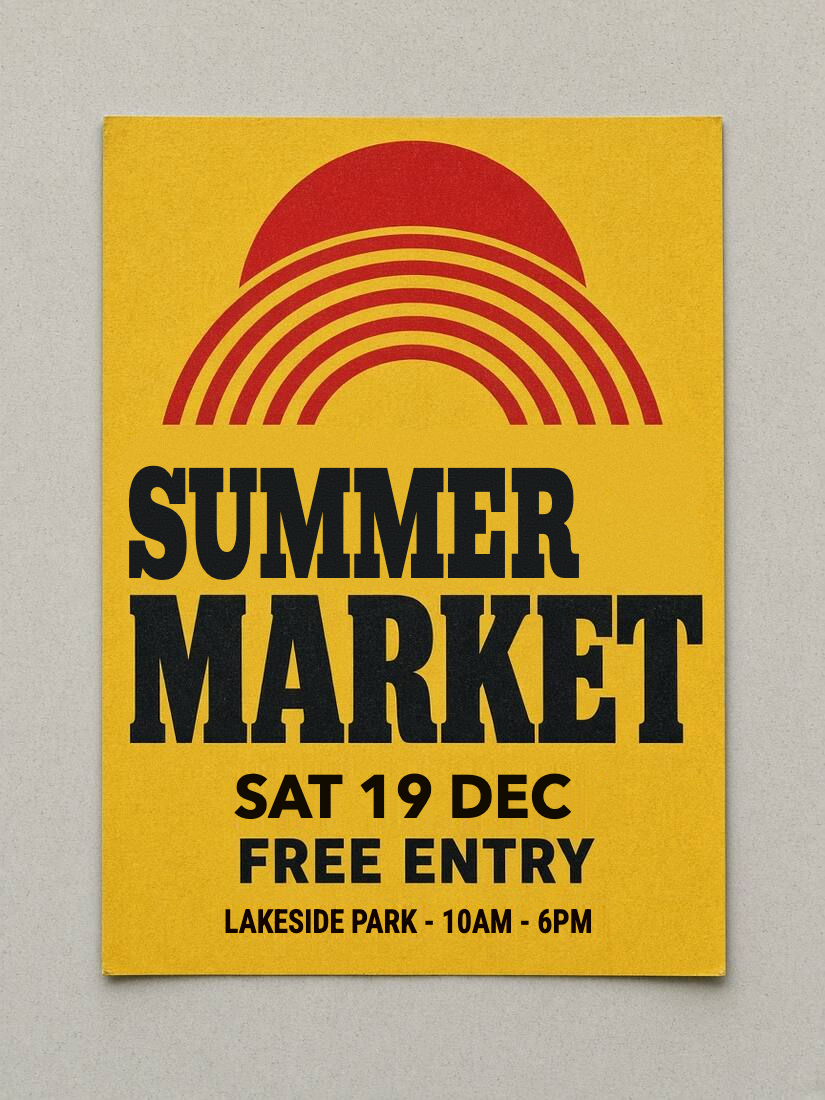
Actual editor PNG export with SUMMER corrected.
Step 3: Repair the background and choose a clean typeface
- If the misspelled word sits on a solid flat banner, local preview replaces it immediately. If it sits over paper texture, a gradient or painted scenery, click Repair background to reconstruct the surface behind the old letters.
- Open the Font library and pick a crisp font that fits the poster's style—for example Bevan or Alfa Slab One for bold vintage slabs, Bebas Neue or Oswald for tall condensed titles, or Playfair Display for editorial serifs.
- When adding a missing letter makes the corrected word wider than the old one, check whether Fit original text box shrinks it too much. You can switch to Keep current size and nudge the horizontal offset if there is room beside the word.
What works well—and what still needs manual painting
- Best candidates: flat poster headlines, badge labels, UI mockups, book titles, signboards and speech bubbles.
- Harder cases: 3D balloon lettering, neon tubes, carved stone or letters interwoven with character hair/hands. TwinFont repairs the background and draws clean 2D typography; it does not regenerate 3D lighting effects. For gibberish subtitles you do not need at all, switch to the remove text from image tool to erase them cleanly.