How to edit text in an image without Photoshop
Change or replace words inside a flattened JPG, PNG or WebP in your browser without Photoshop: recognize text, match a free font, repair the background and export.
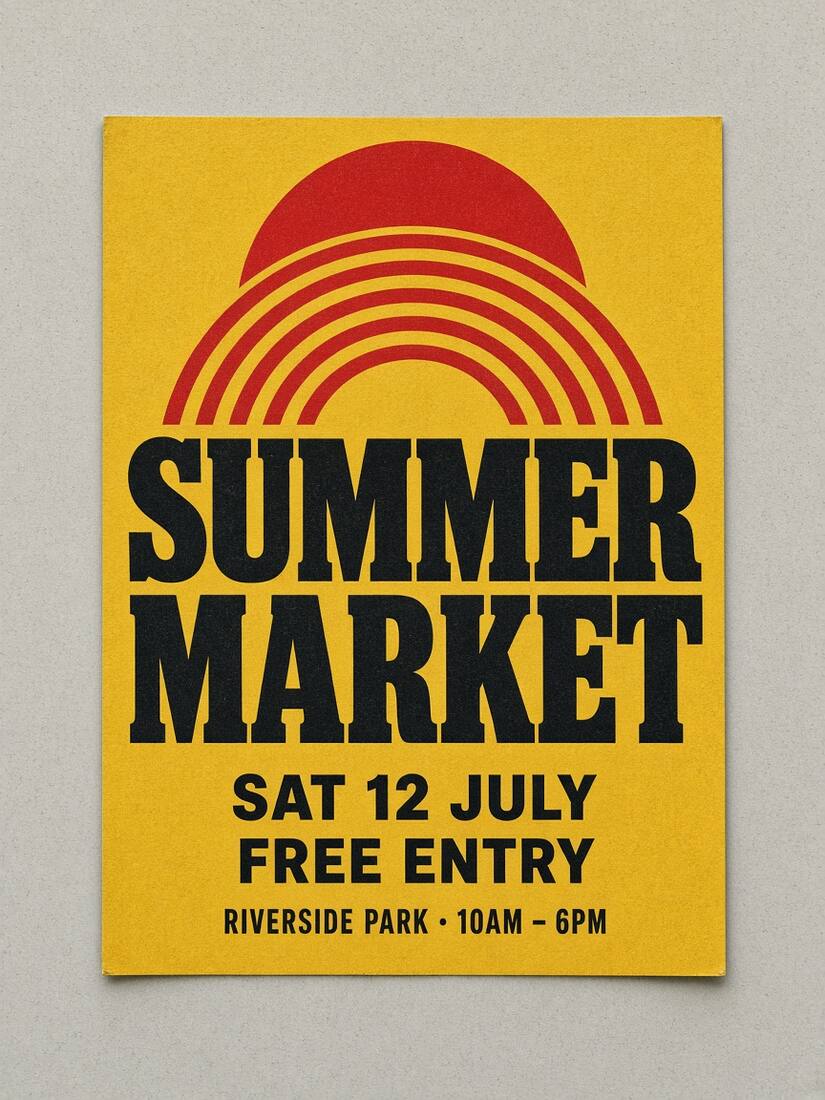
When you only have a flattened JPG, PNG or WebP—not the original PSD, Figma or Canva file—changing a single date, price or label in Photoshop normally takes four separate manual steps: selecting the old letters, running Content-Aware Fill or Clone Stamp, guessing the font with Match Font, and aligning a new text layer.
If you do not have a Creative Cloud subscription or just need a quick, clean revision in your browser, you can follow the same re-typesetting workflow online in TwinFont's image text editor.
Why editing text in a flat image is tricky
A raster image has no text layers; the letters are just colored pixels baked into the background. Any tool that changes the wording without Photoshop still has to solve two problems separately:
- Clearing the old lettering so its edges or shadows do not show behind the new words.
- Typesetting the new wording in a font, weight, size and color that belong to the rest of the design.
In TwinFont, those two steps are separated on purpose so you can inspect each one before downloading.
Step-by-step: change text in an image in your browser
1. Upload the clearest original image you have
Open the replace text in image tool and drop your JPG, PNG or WebP file, or paste a screenshot with Ctrl/⌘ + V. Local text recognition runs in your browser by default for English and Chinese text.
If your image is a stylized poster or photographed sign where local OCR misses a word, click Find missed text or simply drag a manual selection box around the line you want to edit.
2. Check the recognized original before typing your change
Select the text line on the canvas. In the side panel, check Recognized original text first. If an O was read as 0, fix it there—TwinFont uses the original string to compare letter shapes against candidate fonts. Then type your new wording in the Text replacement field.
3. Pick a matching font and tune weight and spacing
TwinFont compares the selected image crop against more than 40 built-in, open-license Google Fonts (plus fonts on your device and any .ttf, .otf or .woff2 file you load) and ranks them by visual shape similarity:
- For UI screenshots, compare Helvetica and Inter alternatives such as Inter, Roboto or DM Sans.
- For geometric posters and flyers, compare Futura alternatives (Jost, League Spartan) or Gotham alternatives (Montserrat, Poppins).
- For menus and labels, compare Garamond alternatives (EB Garamond, Cormorant Garamond) or DIN alternatives (Barlow Condensed, Oswald).
Once you apply a font, adjust Weight, Size (px) and Spacing (px) until the new line sits on the same baseline as neighboring text.
4. Repair the background when old letters show through
On flat solid-color panels (like many UI screenshots), local editing covers the old text immediately in your browser at no cost.
When the old wording sits over paper grain, a gradient or a photograph, click Repair background. Standard cloud background repair reconstructs only the selected box—every pixel outside your selection remains untouched at its original resolution. Guests get 1 lifetime free standard cloud background repair trial (720px preview), and signing up grants 3 welcome credits; credit packs unlock full original-size exports without watermarks.
5. Compare and export lossless PNG
Hold Space or use the Original toggle to compare before and after. Export as PNG to avoid adding another round of JPEG compression around sharp letter edges, and save a .text-project.json file if you might revise the wording again later.
When you still need Photoshop (and when you don't)
| Task | Browser workflow (TwinFont) | Desktop editor (Photoshop) |
|---|---|---|
| Updating a date, venue or price on a poster or menu | Fast—select the line, match the font and export | Works, but requires manual background cloning and font hunting |
| Fixing a label or heading in a UI screenshot | Ideal—local recognition and crisp PNG export | Overkill for flat UI panels |
| Warped 3D text on a curved bottle, neon tubes or metallic embossing | Limited—draws flat editable type; does not recreate 3D effects | Better—supports mesh warp, layer bevels and hand retouching |
Related tools and guides
- Need to identify the typeface first? Open the free font finder from image.
- Working on a software capture? Use the screenshot text editor.
- Erasing a caption completely without adding new words? Use the AI text remover.